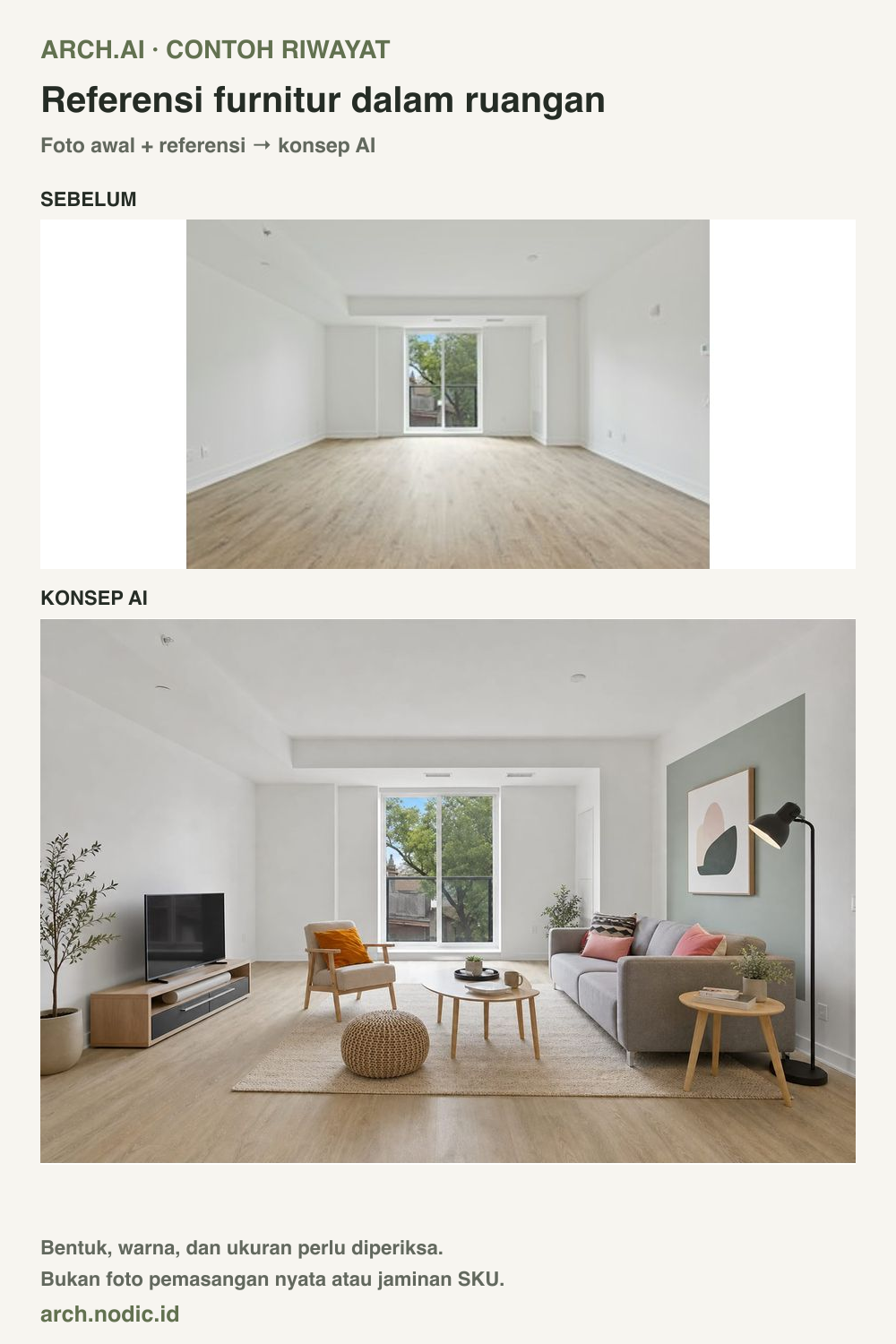
Furniture Layout
From a customer's room photo and product references to an AI concept, then back to the real catalogue and measurements.
The practical approach: ask for one clear photo of the customer's room, pick up to three furniture reference photos, create a concept in Arch.AI's Stage room mode, then compare that concept with the references and the real catalogue before recommending products. The AI concept helps a customer picture the direction; sizes, colours and models are still decided from the catalogue and real measurements. The example below uses one room photo and three references from a result already saved in Arch.AI History.
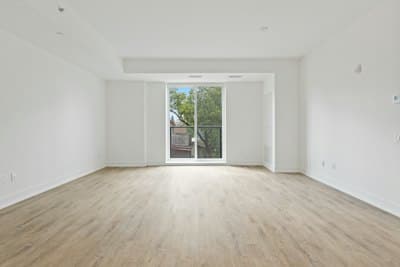
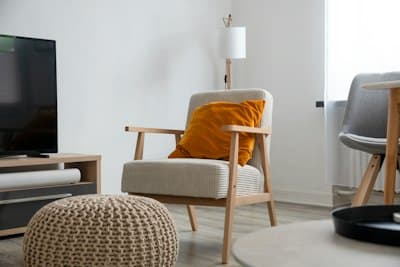
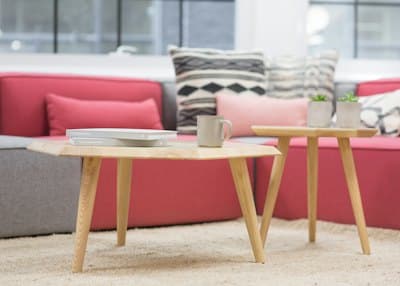
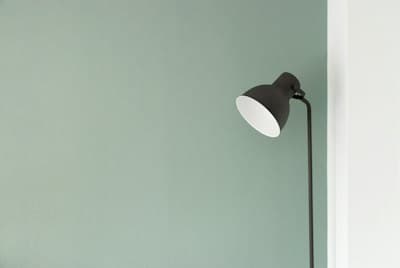
The three reference photos used
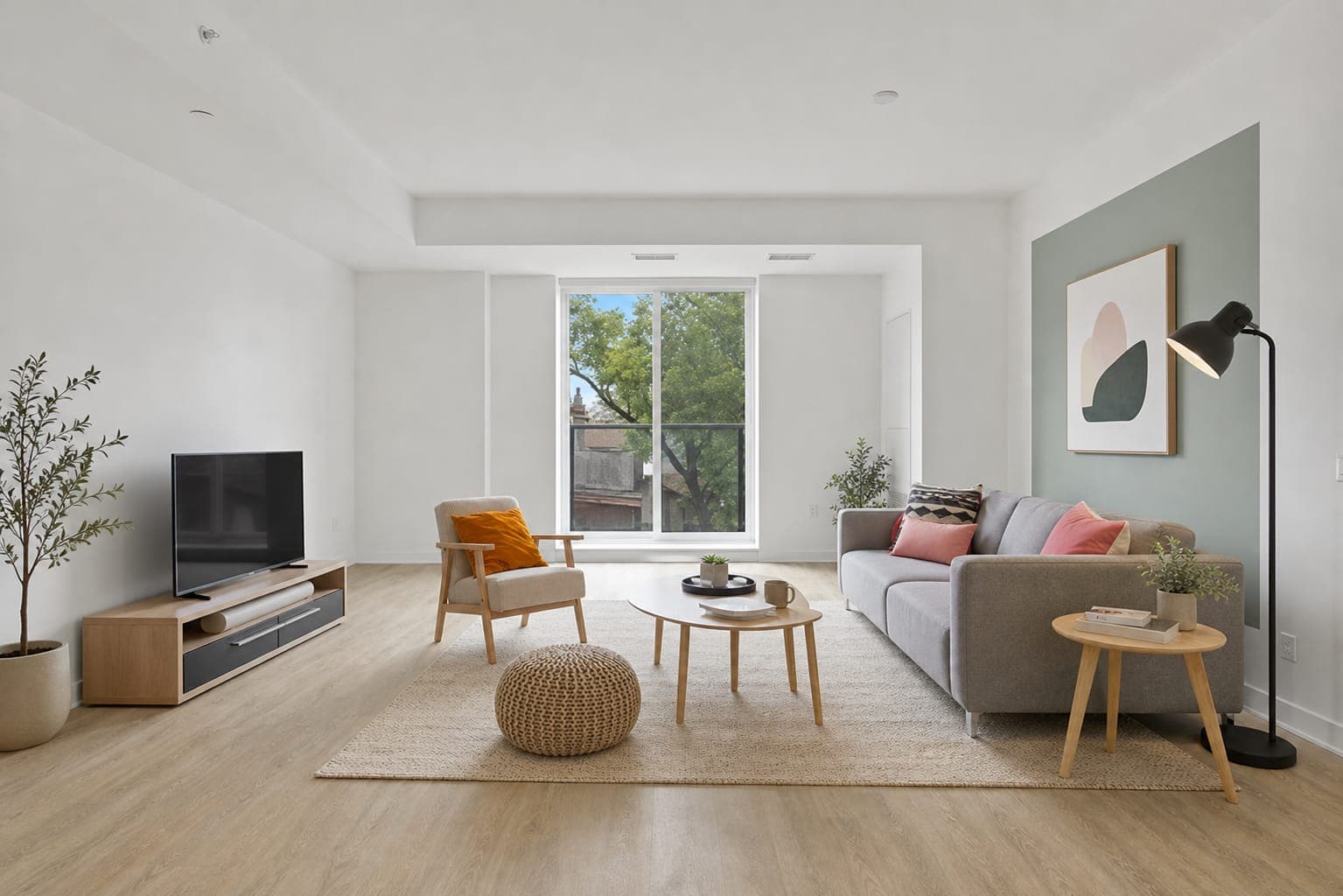
What changed in the AI concept?
Compare each reference with the result before using the image in a conversation. In this example, some references carried over closely and others changed.
| Reference | Carried into the concept | Different |
|---|---|---|
| 1: wooden armchair, orange cushion, knitted pouf | A wooden armchair with an orange cushion and a knitted pouf appear in front of the window. | The TV and unit seen only at the edge of the reference also appear, but the unit now has dark drawers. |
| 2: red sofa, wooden tables, patterned cushions, cream rug | A wooden coffee table, a round side table, a cream rug, and patterned and pink cushions appear. | The red reference sofa became grey. The coffee table shape also changed to an oval. |
| 3: sage green wall and black floor lamp | A black dome-shade floor lamp stands next to the sofa. | The sage colour became only a painted panel behind the sofa, not the whole wall. |
The potted trees and wall art were added by the AI without a product reference. Treat them as decorating suggestions, not products in stock.
A workflow for furniture retailers and interior studios
- Ask for a clear room photo that the owner has allowed you to use. Shoot from an angle that shows the floor and main walls, and avoid photos that show personal information.
- Pick up to three furniture references to discuss, for example a sofa, a chair and a lamp. Use catalogue photos you are allowed to use.
- Open Stage room mode, attach the room photo and product photos, choose the room type, then choose a style. This example uses Living Room and Modern.
- Compare the AI concept with the original photo and each reference, as in the table above. Note what changed before showing the image to a customer.
- Use measured room sizes, product dimensions and the real catalogue before recommending a purchase.
What should you check?
This is an AI concept, not a real installation photo or a guarantee of product accuracy. In this example, the sofa colour differs from the red sofa in the reference. Do not treat it as proof of exact colour, scale or SKU fidelity. Room sizes also cannot be read from an unmeasured photo. Use the actual catalogue and measurements for purchase decisions.
An existing completed result belonging to the Arch.AI maker, reused from History without regeneration. This demonstrates the product workflow; it is not a customer case study or evidence of increased sales.
Frequently asked questions
How many product photos can I attach?
Stage room mode accepts up to three product photos per room photo. Pick the products that matter most to the conversation.
Will the colour and model match the catalogue exactly?
No. The AI can change colour, shape or proportions. In this example the red sofa became grey. Always check against the real catalogue and samples.
Can I use the AI concept to measure the room?
No. An ordinary photo has no verified measurements. Measure the room directly and check product dimensions before confirming that furniture fits.
How much does one concept cost?
Each design uses 1 token. The Starter pack is Rp25,000 for 5 tokens. New accounts get 3 free tokens to try it.
The Starter pack is Rp25,000 for 5 tokens. One token covers one AI design generation attempt. New accounts get 3 free tokens.
Related guides
Save the example summary